How to Hide Online Status in GB WhatsApp
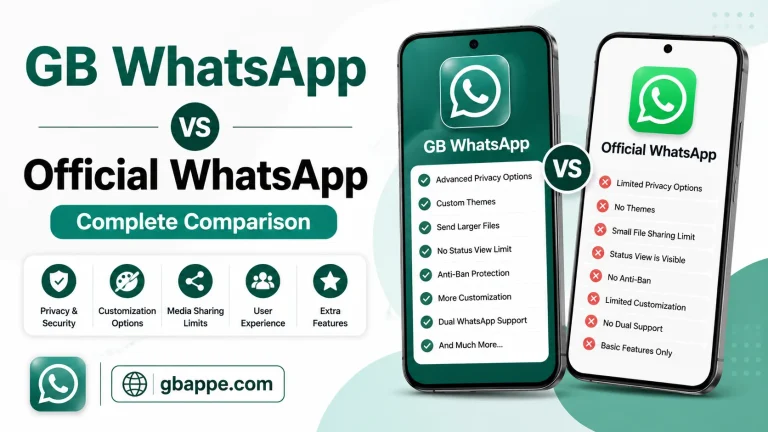
Privacy has become one of the biggest concerns for WhatsApp users. Sometimes you want to read messages or chat with friends without letting everyone know that you are online. While the official WhatsApp offers limited privacy options, GB WhatsApp provides more advanced features that give users greater control over their online visibility.
If you use GB WhatsApp, hiding your online status is simple. In this guide, you will learn how to hide your online status, why people use this feature, and what other privacy settings you should enable for better security. and andro
What Is Online Status?
Your online status appears whenever you open WhatsApp while connected to the internet. Anyone chatting with you can see that you are currently using the app. For many users, this creates pressure to reply immediately or continue conversations they may not have time for.
GB WhatsApp allows you to hide this status so you can use the app more privately.
Why Hide Your Online Status?
There are many reasons why people choose to hide their online activity.
- Enjoy more privacy while chatting.
- Read messages without interruptions.
- Avoid pressure to reply instantly.
- Keep work and personal life separate.
- Browse chats peacefully without anyone noticing.
Whether you use GB WhatsApp for personal or business communication, hiding your online status gives you more freedom.
How to Hide Online Status in GB WhatsApp
Follow these simple steps to hide your online status.
Step 1: Open GB WhatsApp
Launch the GB WhatsApp application on your smartphone.
Step 2: Open Settings
Tap the three-dot menu in the top-right corner and select GB Settings.
Step 3: Go to Privacy Settings
Inside GB Settings, open Privacy or Privacy & Security, depending on your version.
Step 4: Find Online Status Option
Scroll until you see the option related to Hide Online Status or Freeze Last Seen.
Step 5: Enable the Feature
Turn on the option. Once enabled, other users will no longer see when you are online.
Some versions may ask you to restart the app. If so, simply reopen GB WhatsApp to apply the changes.
Difference Between Hide Online Status and Freeze Last Seen
Many users think these two features are the same, but they work differently.
Hide Online Status
This feature hides the “Online” indicator while you are actively using GB WhatsApp.
Freeze Last Seen
This keeps your last seen time fixed at a specific moment, even if you continue using the app throughout the day.
For maximum privacy, many users enable both options together.
Other Privacy Features in GB WhatsApp
GB WhatsApp offers several privacy options besides hiding your online status.
Hide Blue Ticks
Read messages without sending read receipts.
Hide Second Tick
The sender will not know when the message has been delivered.
Hide Typing Status
People cannot see when you are typing a reply.
Hide Recording Status
Others won’t know when you are recording a voice message.
Anti-Delete Messages
View messages even after the sender deletes them.
Anti-Delete Status
See status updates even if they are removed before you view them.
These features provide much more privacy compared to the standard WhatsApp application.
Benefits of Hiding Online Status
Using this feature offers several advantages.
Better Privacy
You stay in control of who knows when you are active.
Fewer Interruptions
Friends and contacts are less likely to expect an immediate reply.
Stress-Free Messaging
You can read messages whenever you want without feeling obligated to respond instantly.
Professional Communication
Business users can manage conversations without constantly appearing online.
Things to Keep in Mind
While hiding your online status is useful, there are a few things you should know.
- Some privacy settings work both ways. If you hide your status, you may not be able to see others’ online status.
- Privacy options may vary depending on your GB WhatsApp version.
- Keep your privacy settings updated after installing a newer version of the app.
- Avoid changing settings repeatedly, as some features may require restarting the application.
Common Problems and Solutions
Online Status Still Visible
Restart GB WhatsApp after enabling the feature.
Option Not Available
Your version may not include the latest privacy features. Different versions often have different settings.
Settings Not Saving
Clear temporary cache from your phone and reopen the app before changing the settings again.
Tips for Maximum Privacy
If privacy is important to you, consider enabling these settings together.
- Hide Online Status
- Freeze Last Seen
- Hide Blue Ticks
- Hide Typing Indicator
- Hide Recording Indicator
- Enable App Lock
- Disable Read Receipts when needed
Using multiple privacy features provides a more secure messaging experience.
Frequently Asked Questions
Can I hide my online status in GB WhatsApp?
Yes. GB WhatsApp includes a built-in option that allows users to hide their online status from other contacts.
Will people know I am using GB WhatsApp?
No. Hiding your online status only changes your visibility inside chats. It does not notify anyone about the app you are using.
Does hiding online status affect messaging?
No. You can continue sending and receiving messages normally.
Can I still receive calls?
Yes. Hiding your online status does not affect voice calls, video calls, or incoming messages.
Is it possible to use multiple privacy features together?
Yes. GB WhatsApp allows you to combine several privacy settings, including hiding online status, blue ticks, typing status, and recording status.
Final Thoughts
Hiding your online status in GB WhatsApp is one of the easiest ways to improve your privacy while chatting. Whether you want to avoid interruptions, maintain personal space, or simply use the app without appearing online, this feature makes it possible with just a few taps.
For the best experience, combine it with other privacy settings such as hiding blue ticks, freezing last seen, and hiding typing indicators. Together, these options give you greater control over your conversations while making your messaging experience more comfortable and private.